Web forms that turn visitors into assigned leads
Build a form, publish it or embed it, and every submission becomes a lead with its source set and an owner assigned.
14-day free trial, no card required.
Last reviewed 2026-10-24 · Owner: Pixelwand Team
- Web forms on Lite
- 5
- Web forms on Growth
- 10
- Web forms on Premium
- Unlimited
- Plan for automatic lead assignment
- Growth+
Why teams look for this
Leads from your website often arrive in an inbox or a spreadsheet, and the first person to notice them decides how fast they get a reply.
A separate form tool means one more export, one more integration and one more place where a lead can sit unassigned for a day.
Pixelwand’s web forms write straight into the lead list. Each submission has a source, an owner and a place on the timeline from the first second.
Who it is for — and who it is not for
A good fit if you
- collect inbound leads from your own site, landing pages or events
- want new leads assigned to a rep without a manual triage step
- need a form without adding a separate form tool to the stack
- are happy to embed a form or share a link
Not a fit if you
- need surveys, quizzes or multi-page conditional forms
- want a submission to update an existing lead instead of being rejected
- need white-labeled forms on a Lite, Growth or Premium plan
- want a form builder with no connection to a sales workflow
The workflow, step by step
- STEP 1
Build the form
Create a form and pick its fields from the lead record. Write the introduction, add a banner and set the submit button label.
- STEP 2
Set the success step
Choose what visitors see after submitting, a success message or a redirect to your own page, then publish.
- STEP 3
Share or embed it
Copy the link or the embed code and place it on your site, in an email or on a slide.
- STEP 4
The lead arrives assigned
Each submission becomes a lead with the source set to Web Form. Assignment rules route it on Growth and above; otherwise it goes to the form’s owner.
- STEP 5
Follow up
Call the lead from a queue, enroll it in a sequence or move it into the pipeline. The submission stays on the timeline.
What it looks like
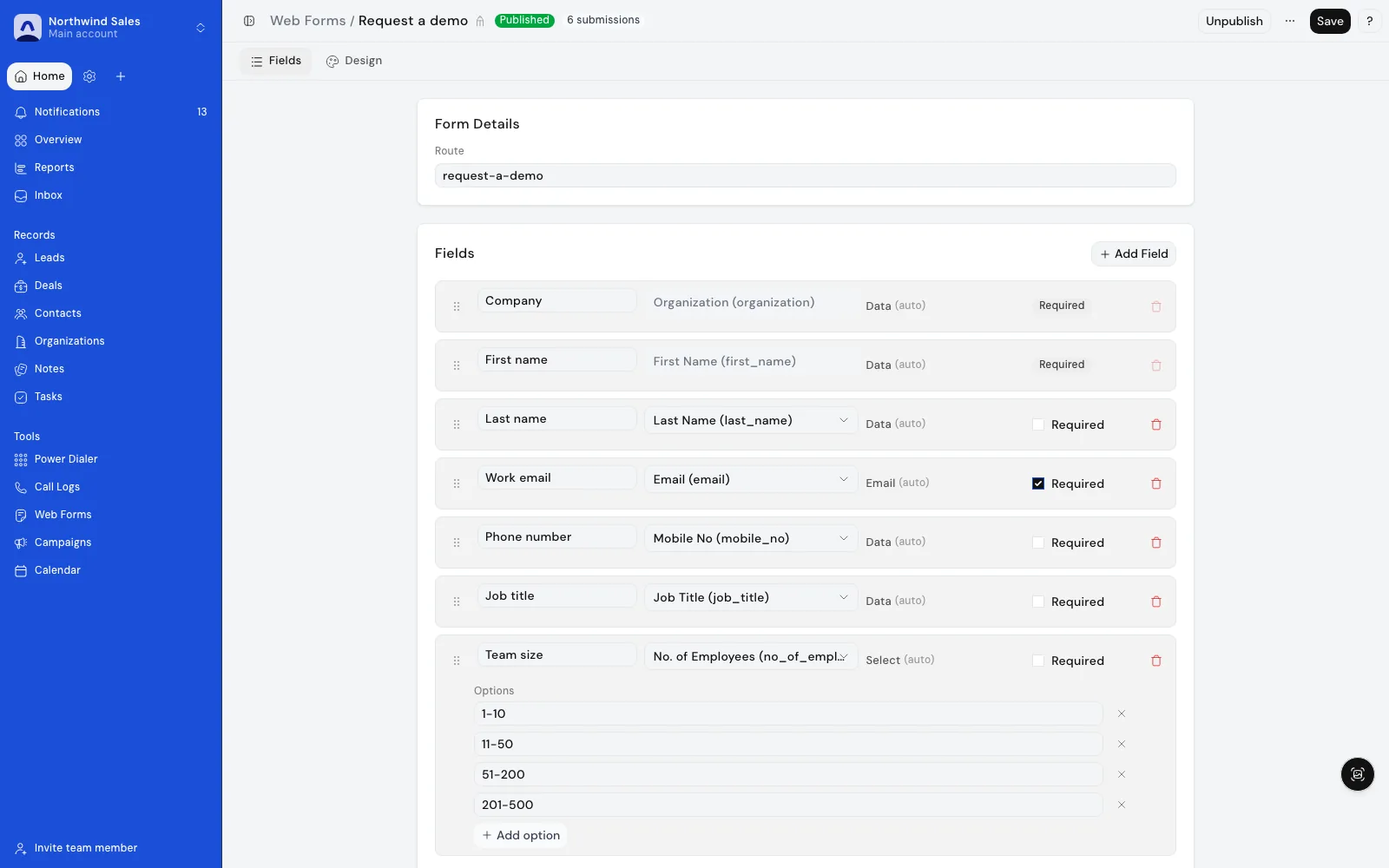
Screenshots show demo data.
What is included — and the limits
Included
- A form builder where you pick the fields from the lead record, add an introduction, a banner image and your own submit button label.
- A success title and message after submitting, or a redirect to a URL you choose.
- Publish and unpublish a form, share its link, or copy an embed code for your own site.
- Consent and terms fields for forms that need an explicit opt-in.
- Every submission creates a lead in your workspace with the source set to Web Form.
- New leads go to your assignment rules (Growth and above), and to the form’s owner when no rule matches.
- A second submission with the same email address is rejected as a duplicate instead of creating another lead.
- A submissions view per form, so you can see what came in.
Limits
- Lite includes 5 web forms, Growth 10 and Premium unlimited; white-labeled forms are an Enterprise feature.
- Automatic assignment through assignment rules starts on Growth. Without a matching rule, new leads go to the form’s owner.
- A repeat submission with the same email address is rejected, not merged into the existing lead.
- File uploads are limited to common image and document types, and public submissions are rate limited.
- Forms collect into your lead list. They are not a survey or quiz tool.
How teams use it day to day
Website contact form
Put a contact form on your site and know that every request lands as a lead with a source and an owner, ready to call.
Event sign-ups
Share a link on a slide or QR code at an event. Everyone who signs up is in the lead list before the booth closes.
One form per campaign
Run a form per campaign so the lead source shows which pages actually bring in leads that turn into deals.
Opt-in lead capture
Use a consent field on forms that need an explicit opt-in before you email or text the lead.
Frequently asked questions
What happens when someone submits a form?
A submission creates a lead in the form’s workspace with its source set to Web Form. If an assignment rule matches, the lead goes to that rep. If none does, it is assigned to the person who created the form so it never sits unowned.
Can I put a form on my own website?
Yes. Publish the form and share its link, or copy the embed code from the form menu and place it on your own page. Unpublished forms are not available to visitors.
What if the same person submits twice?
The submission is rejected with a message that a record with that email address was already submitted. This keeps repeat clicks and repeat visitors from creating duplicate leads.
How many forms does each plan include?
Lite includes up to 5 web forms, Growth up to 10 and Premium unlimited. Enterprise adds white-labeled forms. Automatic lead assignment starts on Growth. See /pricing for the current plans.
Can a form require consent?
Yes. Add a consent field and the form requires it before a visitor can submit. Public submissions are also rate limited, and file uploads are restricted to a safe list of document and image types.
What can I do with a lead after it comes in?
Yes. A new lead lands on the shared timeline and in your lead list. You can call it from the power dialer, enroll it in an email sequence that triggers on new leads, or move it into the pipeline.
Call new web leads straight from a queue.
Follow up new leads with reviewed email and SMS steps.
Move web leads into stages with probabilities.
See which sources produce deals, not just leads.
Inbound and outbound lead capture in one workspace.
Form limits and assignment rules by plan.
How routing and fast assignment relate to conversion.
Bring an existing list in over CSV.
Start closing
more deals today.
Join high-growth sales teams automating their busywork with Pixelwand.
"Just on WhatsApp, [Deependra] has been recommending me features and helping me out wherever I'm stuck with the CRM."