How to Add a WhatsApp Button to Your Website
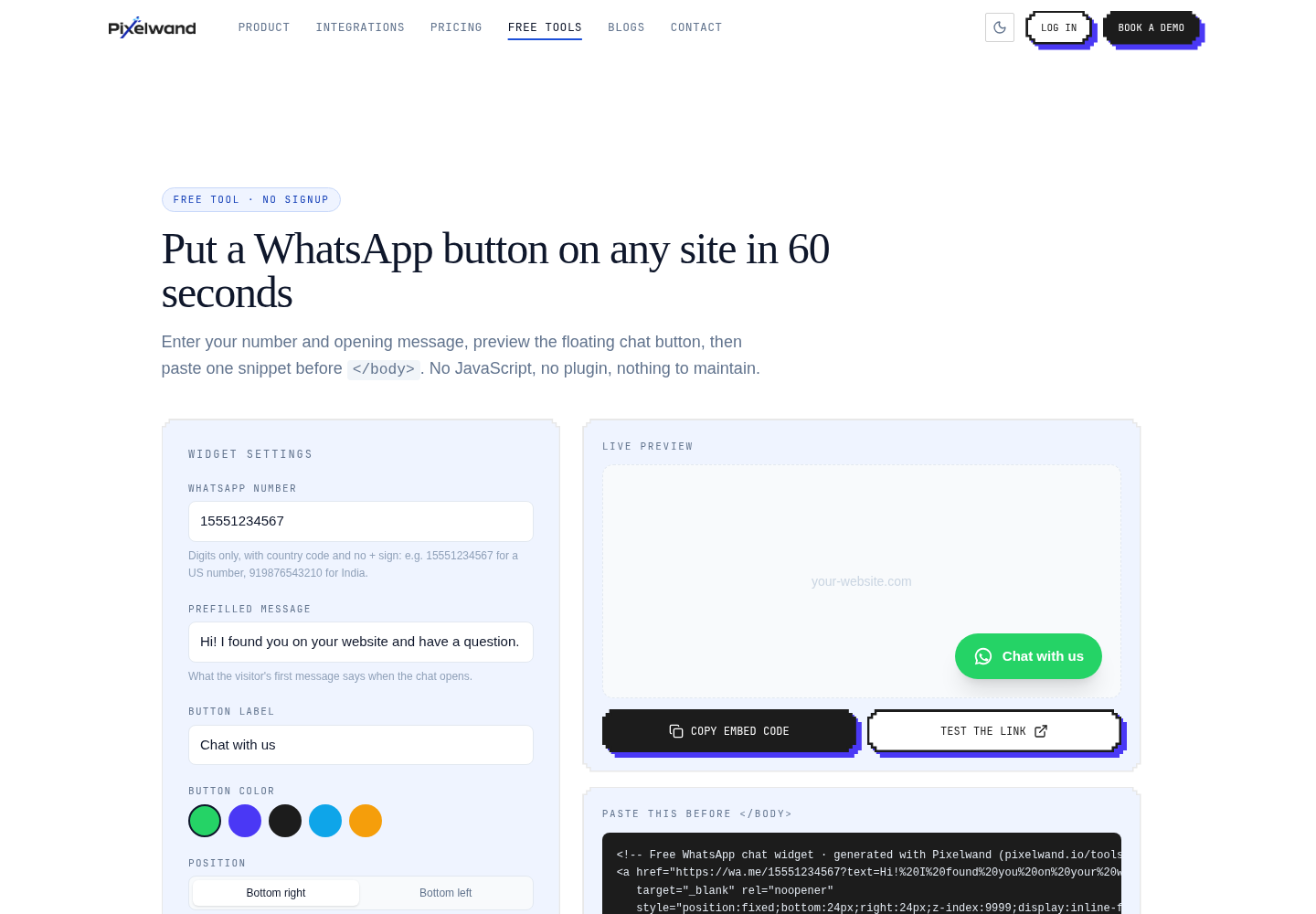
Add a floating WhatsApp click-to-chat button with a number and opening message, then copy the generated snippet into your website.
TL;DR: A website WhatsApp button needs three things: a business number, a useful opening message, and a clear place for the button. The free WhatsApp widget generator creates a live preview and copy-paste snippet without a plugin.
What is a WhatsApp click-to-chat button?
A click-to-chat button opens a WhatsApp conversation with a chosen number and can prefill a message. It reduces the work between “I have a question” and “I contacted the business.” A floating button is especially useful on service, pricing, and contact pages where a visitor is already considering a next step.
The button is not a replacement for a support process. Decide who owns replies, what hours you promise, and where the conversation should be recorded before adding it to every page.
How do you generate the WhatsApp website code?
Open the WhatsApp widget generator, enter the number in international format, and write the opening message. Review the preview on the page, then copy the generated snippet. Paste it before </body> in your site template or custom-code area.
The generator is designed to keep the setup small. You do not need a package manager, a plugin, or a separate backend just to display the button. Test it on desktop and mobile after publishing, since the placement and touch target matter more on a small screen.
What makes an opening message useful?
The best message gives the visitor a reason to start now. “Hi, I’d like to ask about the pricing plan” is more useful than “Hello.” For a service page, name the service. For a product page, invite a specific question. For a campaign page, reference the offer so the team immediately knows the context.
Keep the message editable. Visitors should still be able to add details, and your team should not imply that a response is instant if it is not. A clear expectation builds more trust than a clever greeting.
Where should the button appear?
A floating button can stay visible while someone reads, but it should not cover cookie controls, chat, or important mobile navigation. Test the button with the page at 200% zoom and on a narrow viewport. If your site already has multiple floating actions, use one primary contact action rather than creating a stack of competing circles.
Measure conversations, qualified leads, and response time, not just clicks. A smaller number of useful chats is better than a high volume of messages that nobody can answer.
Curious how this looks with your own pipeline?
15-minute walkthrough, no pressure, cancel anytime.
Where Pixelwand CRM fits in
The widget starts a conversation on your website. Pixelwand CRM helps your team keep the relationship visible after that conversation begins, with two-way WhatsApp Business messaging attached to lead and deal records. That keeps a reply from disappearing into one employee’s phone and gives the next rep the context they need. See the WhatsApp and CRM workflow.
Sources: Pixelwand WhatsApp Widget Generator, Pixelwand Integrations
Improve website lead capture with a focused WhatsApp click-to-chat flow, clear prompts, ownership rules, and a fast follow-up handoff.
WhatsApp messages open 98% of the time versus 20-25% for email, and get read within 90 seconds. Here's how sales teams use it.
Frequently asked questions
How do I create a WhatsApp button for my website?
Enter a WhatsApp number and opening message in the Pixelwand widget generator, preview the button, copy the generated snippet, and paste it before your website's closing body tag.
Does a WhatsApp click-to-chat button need a plugin?
No. The Pixelwand generator creates a small copy-paste snippet, so you do not need a separate WordPress plugin or a custom JavaScript build.
What should the opening WhatsApp message say?
Make it specific to the page or offer, explain what the visitor can ask, and use one clear next step. A short message is easier for a visitor to send and for a team to answer.