Note
Notes capture context for leads and deals, with a required title, rich content, and optional color.
Notes capture context for leads and deals. Each note has a required title, rich content, and a color (Yellow, Blue, Green, Rose, Violet, or Slate). Notes are workspace-specific and appear linked to the lead or deal they reference.
Creating Notes
There are two primary ways to create notes:
-
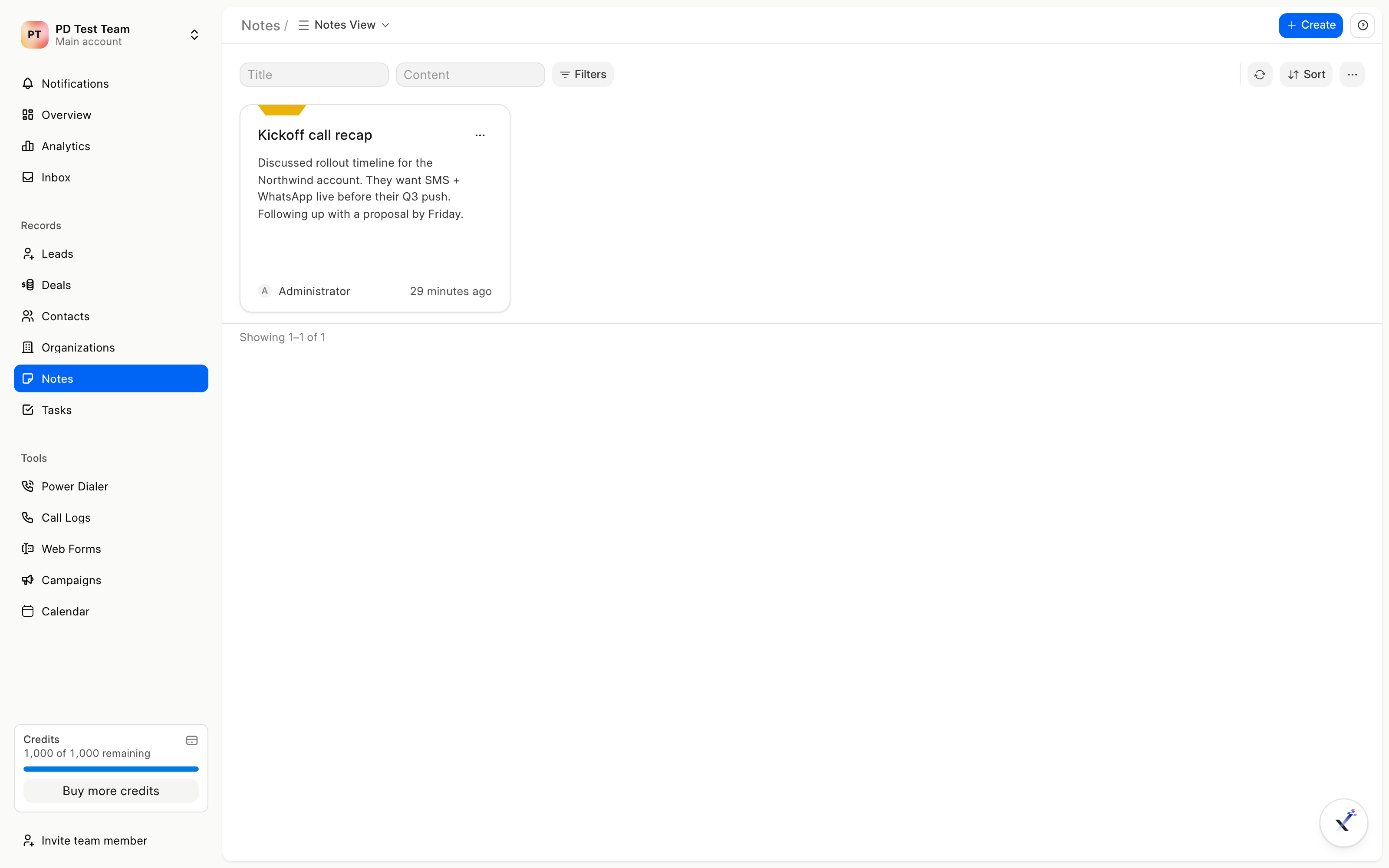
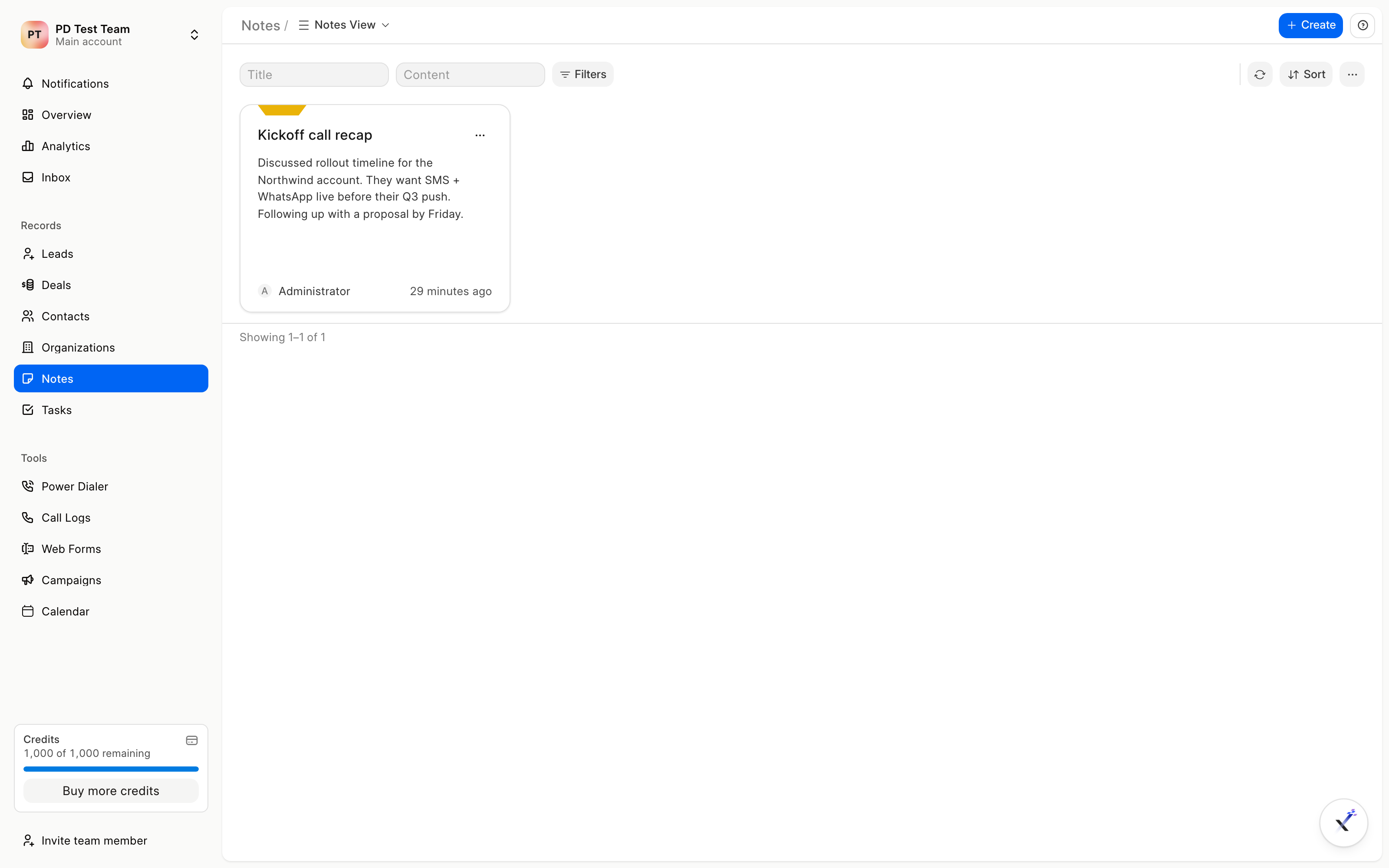
Notes list view: Open Notes from the sidebar. This is the centralized workspace to manage all notes, with color, search, and grid cards.
-
Lead or Deal record: From the Lead or Deal page, use New Note in the Notes tab, or New → New Note from the Activity tab's dropdown. You can also use Add Note directly from the lead or deal lists. The Notes tab shows the history of notes linked to that specific record.

Using Notes Effectively
Notes are flexible. The editor supports rich text, lists, and task lists. Examples:
- Call summaries: Capture key takeaways from conversations. Power Dialer and call intelligence can also generate summaries automatically.
- Meeting agendas and minutes: Outline purpose and key points.
- Action items: List follow-up actions. You can extract a task from a note with Extract task with AI.
- Research and insights: Document findings about leads or markets.
Notes created this way notify the team and appear in the timeline. By keeping context in notes, your team stays aligned and follow-ups become clear.