Contact
Contacts hold the people you sell to, with email, phone, organization, and address, and link to deals for follow-up.
Contacts hold the people you sell to, with email, phone, organization, and address, and link to deals for follow-up. A single deal can have multiple contacts, with one marked as primary.
Create a Contact
- Go to Contacts and click Create.
- Fill in the details such as First Name, Last Name, Email, Mobile No., Organization, and Designation. Added details like phone, gender, and salutation are available in the form.
- Use Add address if you need a separate address record for the contact.
- Click Create.
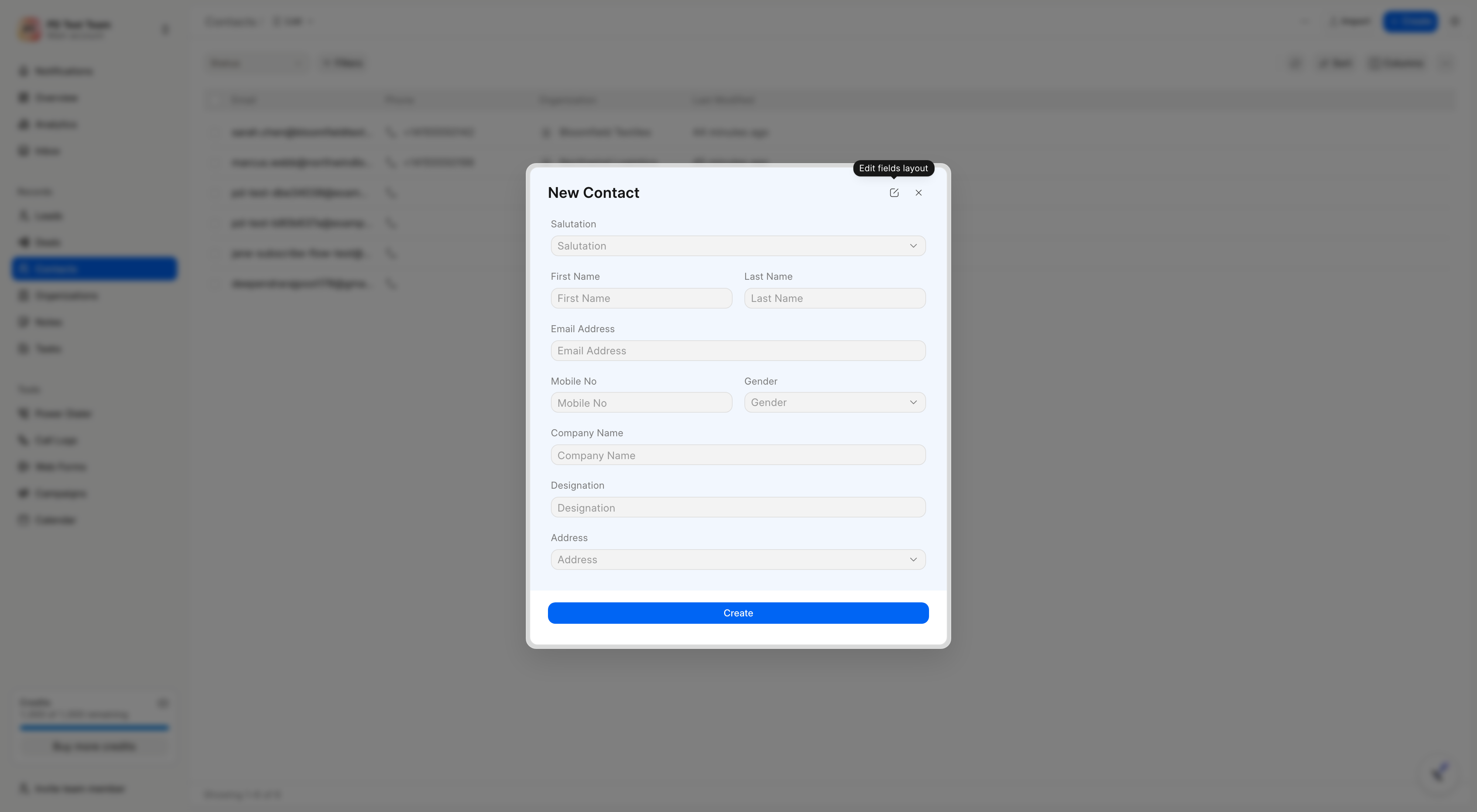
Once added, the contact appears in the Contacts list.
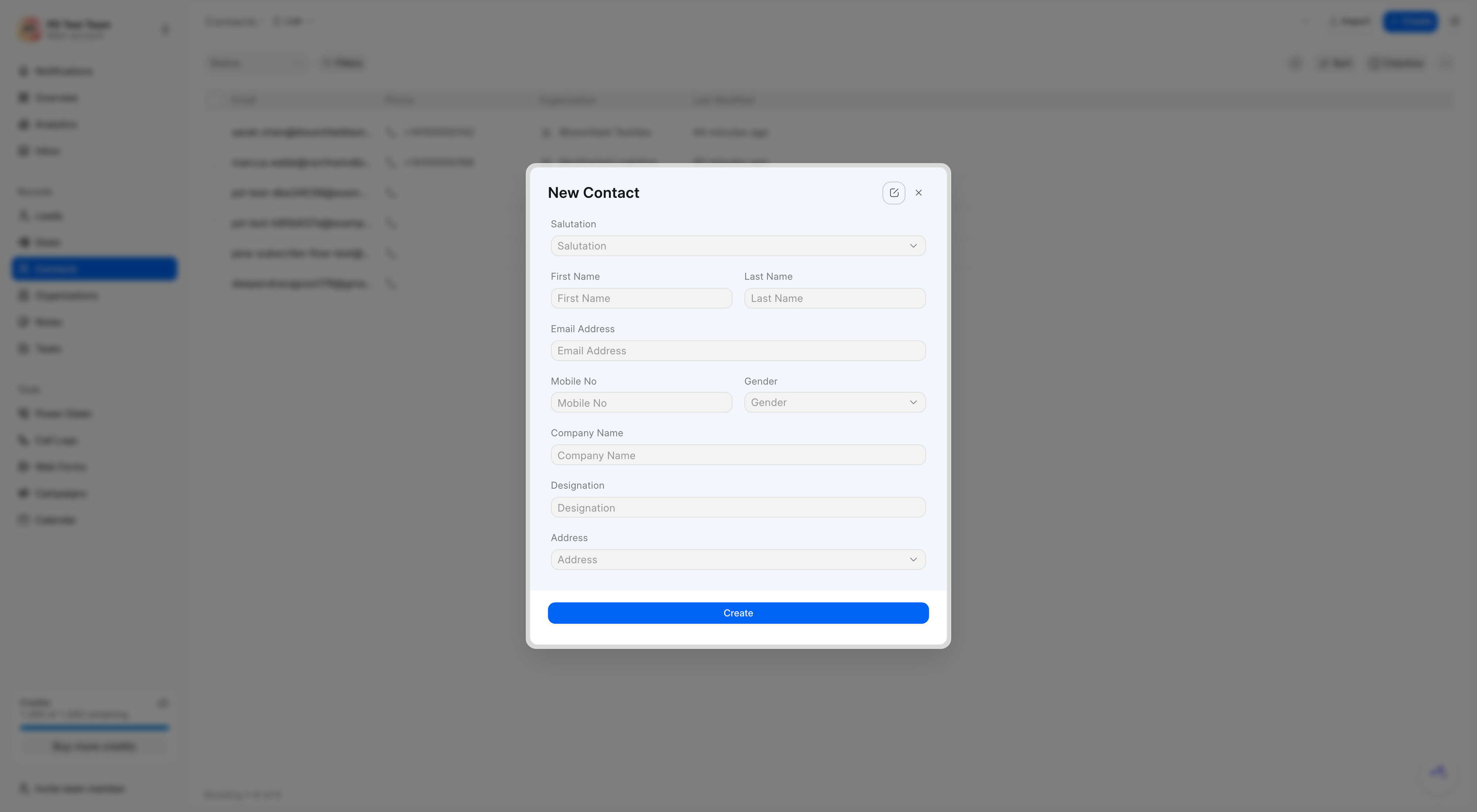
Contact created via Lead
When you capture a lead, add its person details (Name, Email, Mobile No., and Organization) in the lead form.
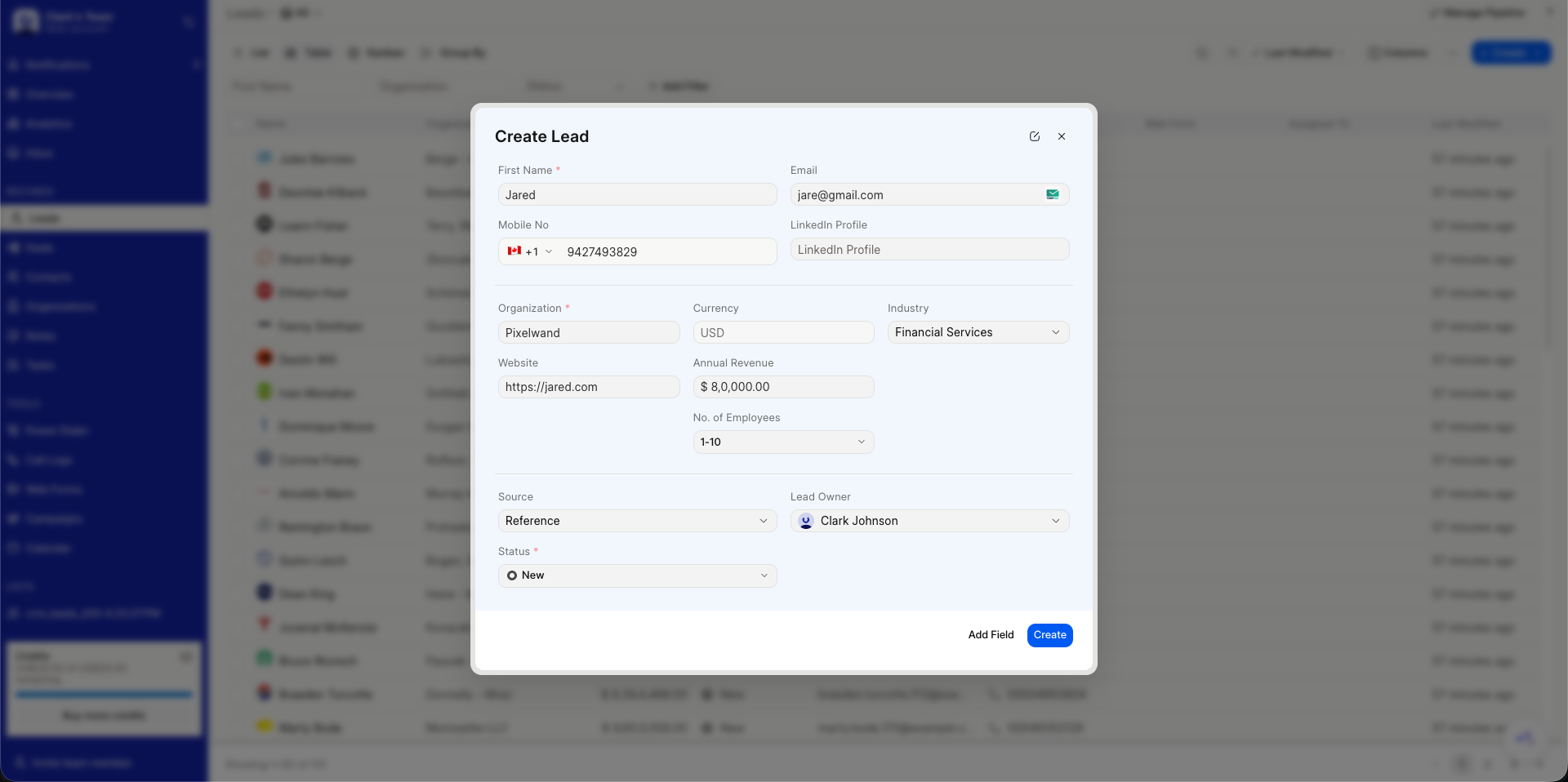
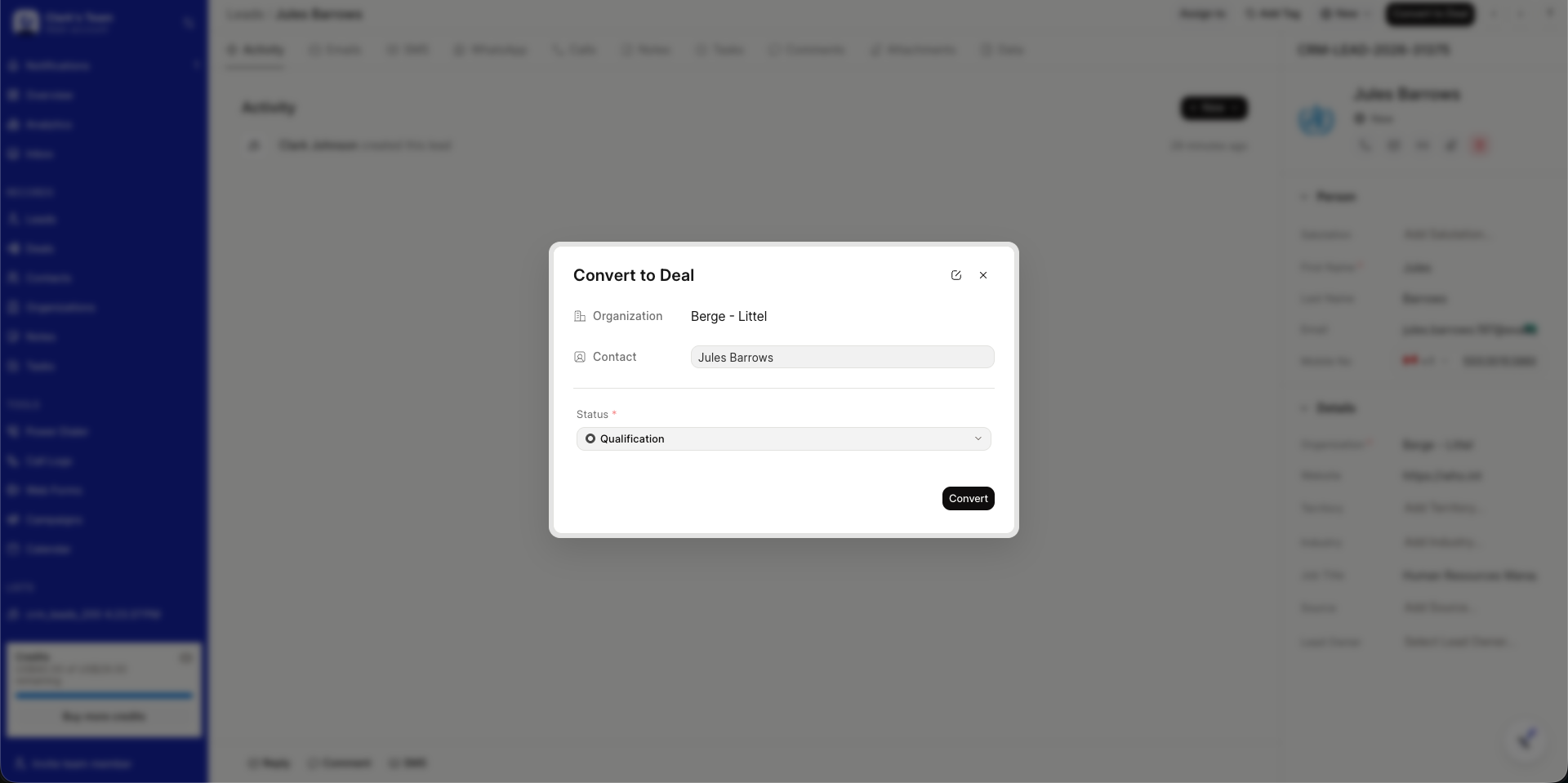
Once you convert the lead to a deal, a new Contact is created from that information. If a contact with the same email or phone already exists, the existing record is reused. On mobile you can also choose an existing organization or contact during conversion.
You can also select an existing organization or contact when you convert a lead to a deal as shown below. On desktop this choice is not exposed. A new record is created automatically.
Linking a Contact to a Deal
You can link an additional contact to an existing deal from the deal's Contacts section via Add Contact. Choose an existing person or create a new one directly from the deal.
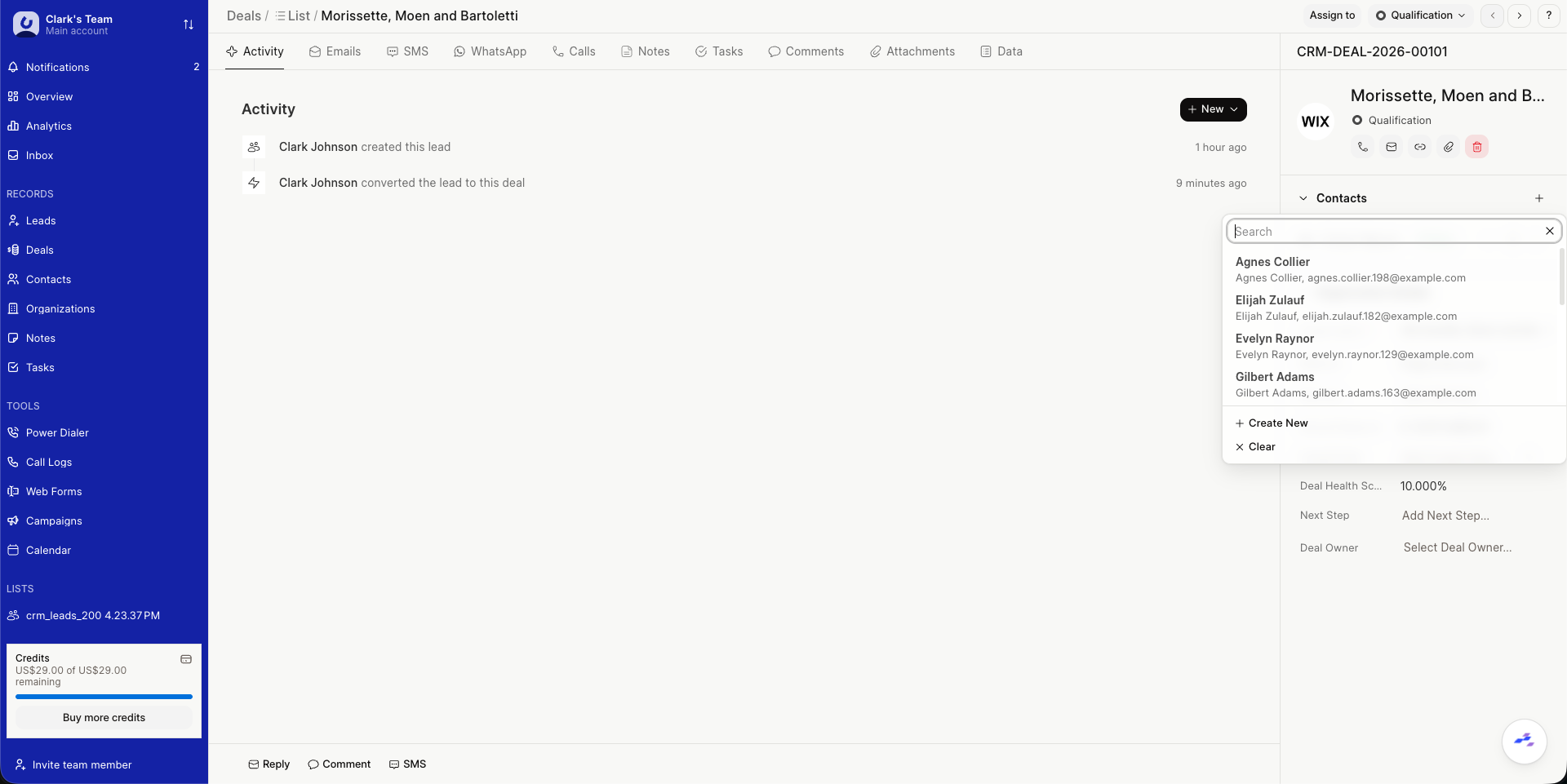
Multiple contacts can be linked to a deal. Set one as Primary to determine the deal's primary email and phone.