Saved View
Views let you see the same data in the layout that fits your work, with filters, sorting, and columns saved automatically.
Views let you see the same data in the layout that fits your work. Filters, sorting, and columns are remembered, so your preferred setup is ready when you return.
What are Views?
A view is a combination of:
- Filters: Which records to show based on criteria.
- Sorting: The order of records (ascending, descending).
- Columns: Which fields appear in the list.
Note: Views are shared across your workspace. The default All view and any saved views are visible to every member of the team. Pinned views appear separately in the sidebar.
Understanding View Layouts
1. List View
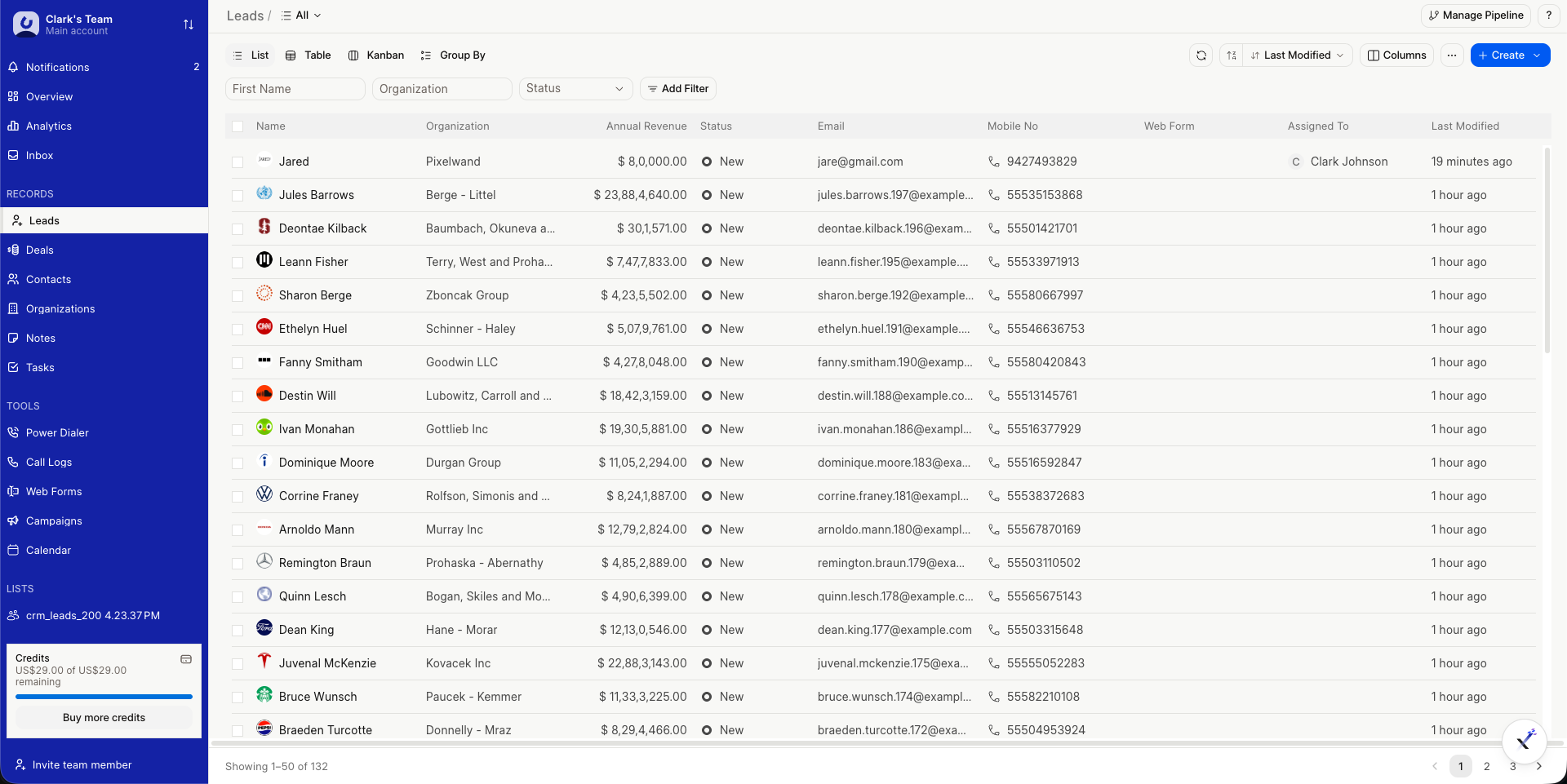
The view above shows the List layout: compact rows for scanning and working through records quickly. Changes to filters, sorting, or columns are saved automatically.
2. Kanban View
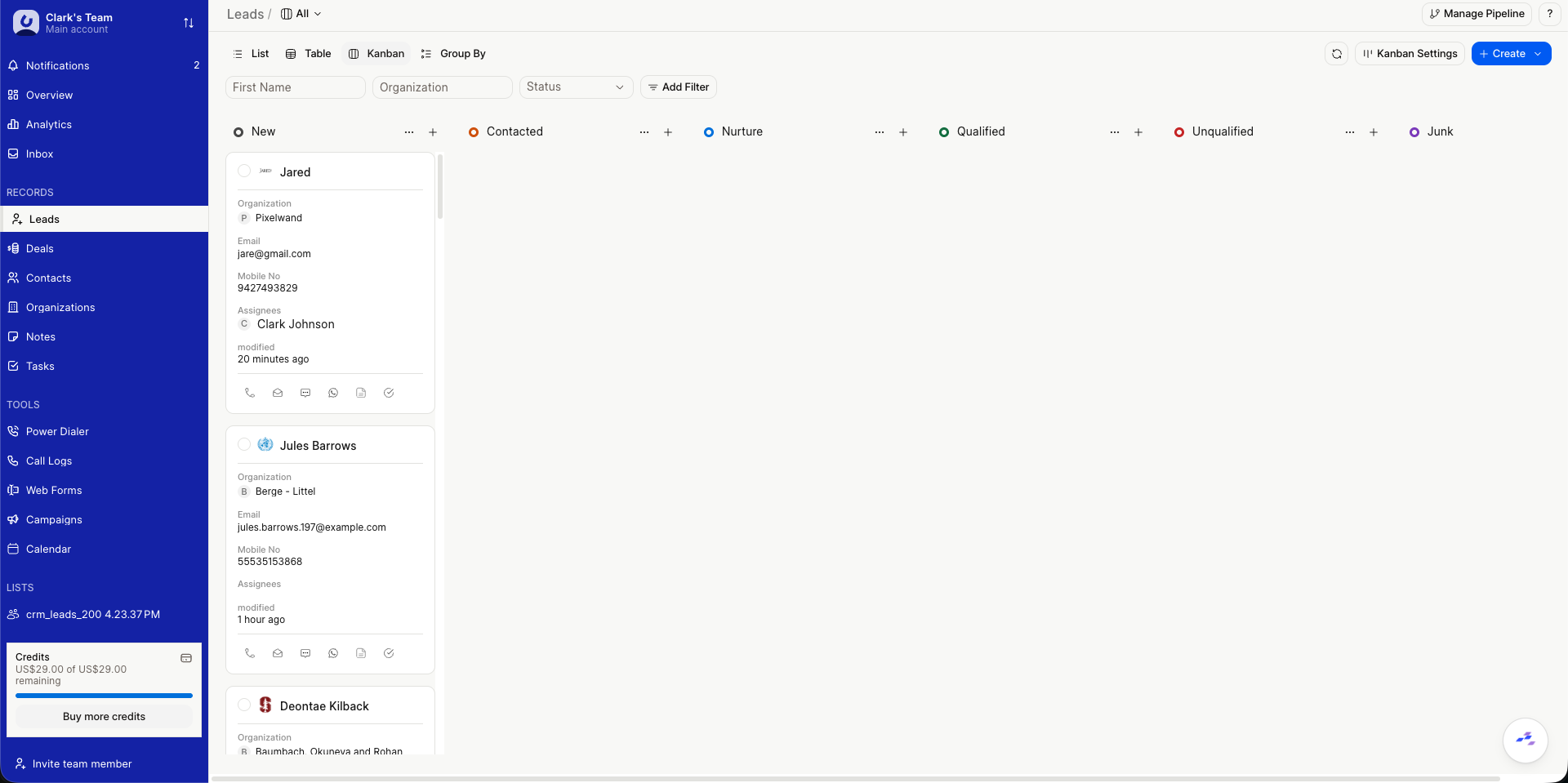
The view above shows the Kanban layout: cards grouped by stage for drag-and-drop movement. The same filters and sorting apply here as in other layouts.
Other layouts include Table for full columns and resizing, and Group by for summarizing around a field. You can switch between them from the view controls, and each layout remembers its own configuration.
Saved View Actions
Open the three-dot menu on a saved view to:
- Edit: Change the name and icon.
- Delete: Remove the view from the team.
- Pin View: pin it to the sidebar for quick access.
- Set as Default: make this view the default for its layout type.
By using views, you can streamline your workflow and jump to the data you need.