Custom List
Custom lists are shared across your workspace. Create a filtered, sorted view once and everyone sees it.
Custom lists are shared across your workspace. Any view you create is visible to every member of your team, grouped under Lists in the dropdown and sidebar. Pinned lists appear separately under Pinned views.
What is a Custom List?
A custom list saves your current configuration:
- Filters: Which records to show.
- Sorting: The order of records.
- Columns and Layout: Which fields and view type (List, Table, Kanban, Group by) to use.
Because lists are team-scoped, a list you create is immediately available to others. No extra sharing step is needed.
How to Create a Custom List
-
Configure the list with filters, sorting, and columns as you want it saved.
-
Open the view dropdown in the list header and click Create List.
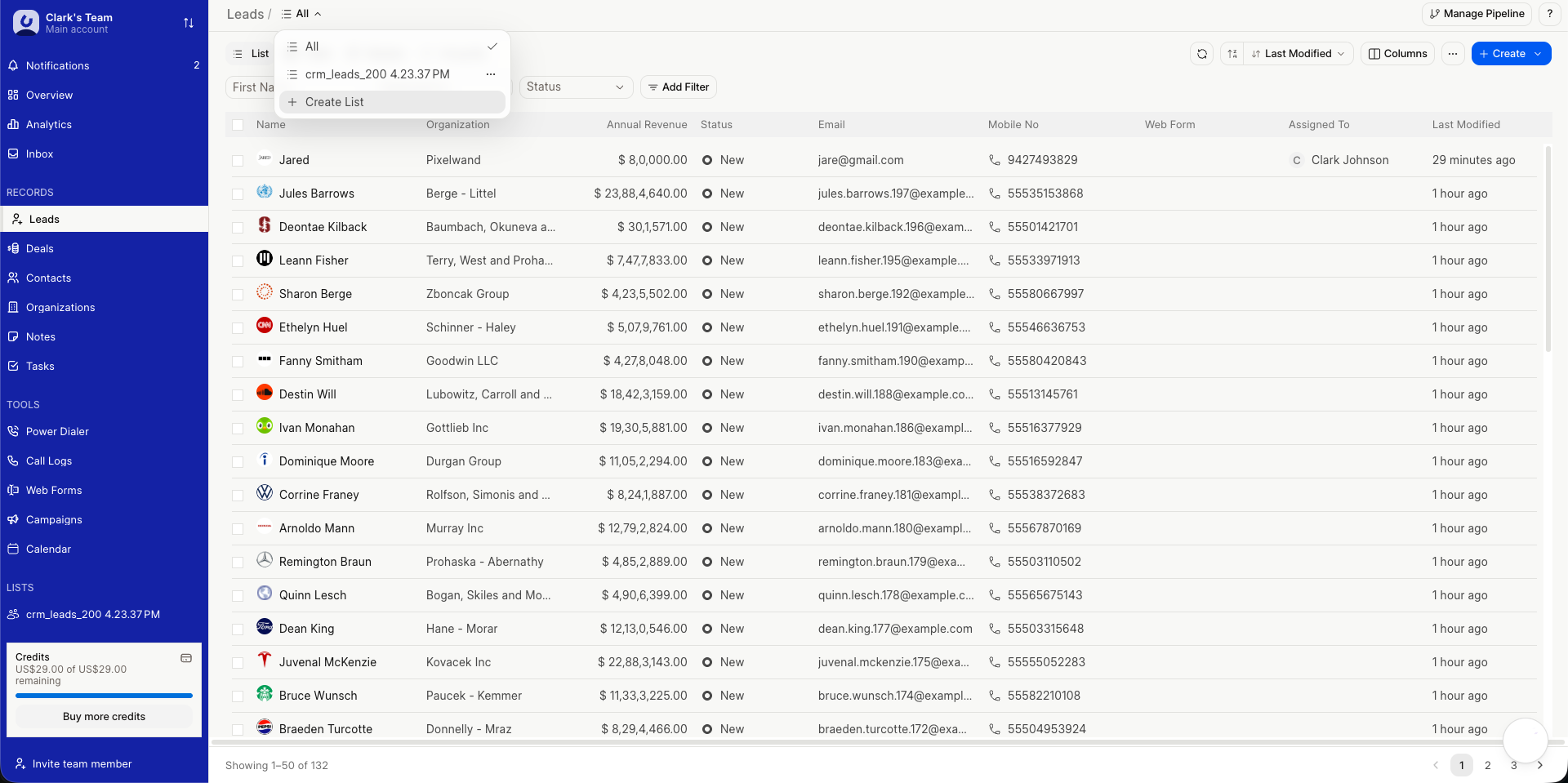
-
Give the list a name and choose an icon, then click Create.
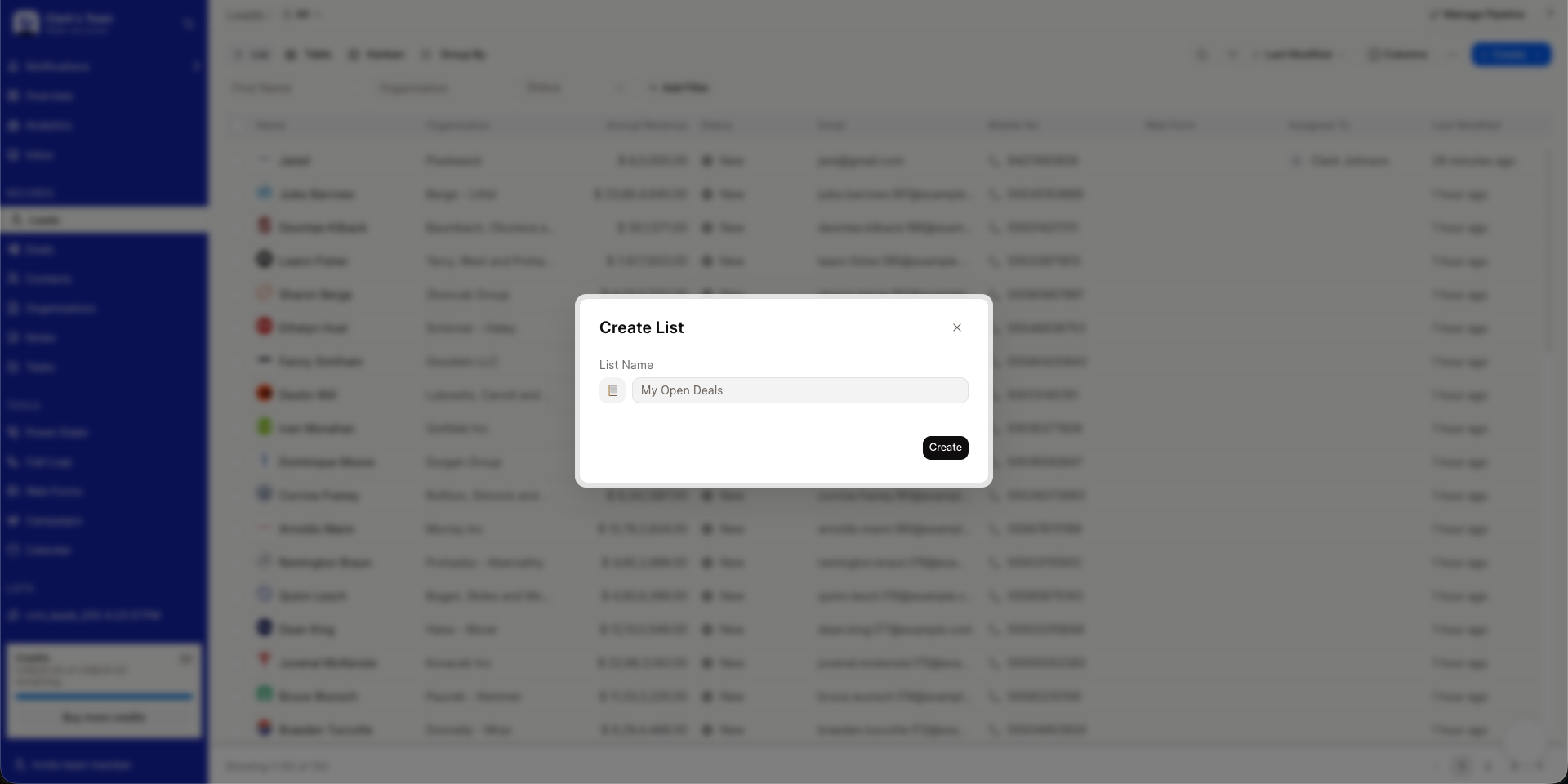
Your new list appears in the view dropdown under Lists and can be reapplied at any time. Open its three-dot menu to Edit, Duplicate, Pin to sidebar, Set as default, or Delete.
Note: All custom lists are shared by default. Use Pin List to surface a list in the sidebar, or Set as default to make it the default for its layout type.