Custom List Actions
Similar to Custom Actions, Custom List Actions allows you to add custom actions that you can perform directly from the list view of various Pixelwand CRM.
Similar to Custom Actions, Custom List Actions allows you to add custom actions that you can perform directly from the list view of various Pixelwand CRM masters (e.g., Leads, Deals, Organizations). These actions enhance your workflow by allowing quick execution of specific tasks without needing to open individual records.
Types of List Actions
There are two main categories of custom list actions:
-
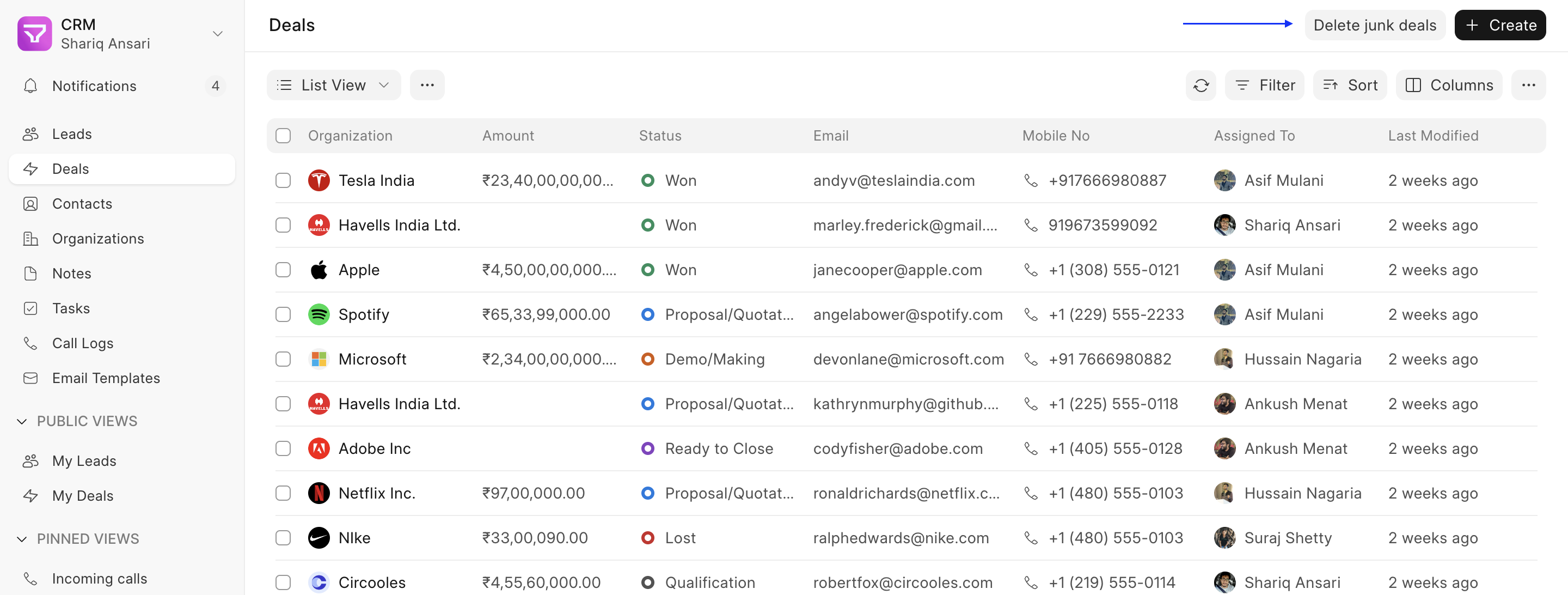
Actions: These resemble the custom actions you find on individual lead/deal pages. They appear as buttons in the list view header beside the create button.
Example:
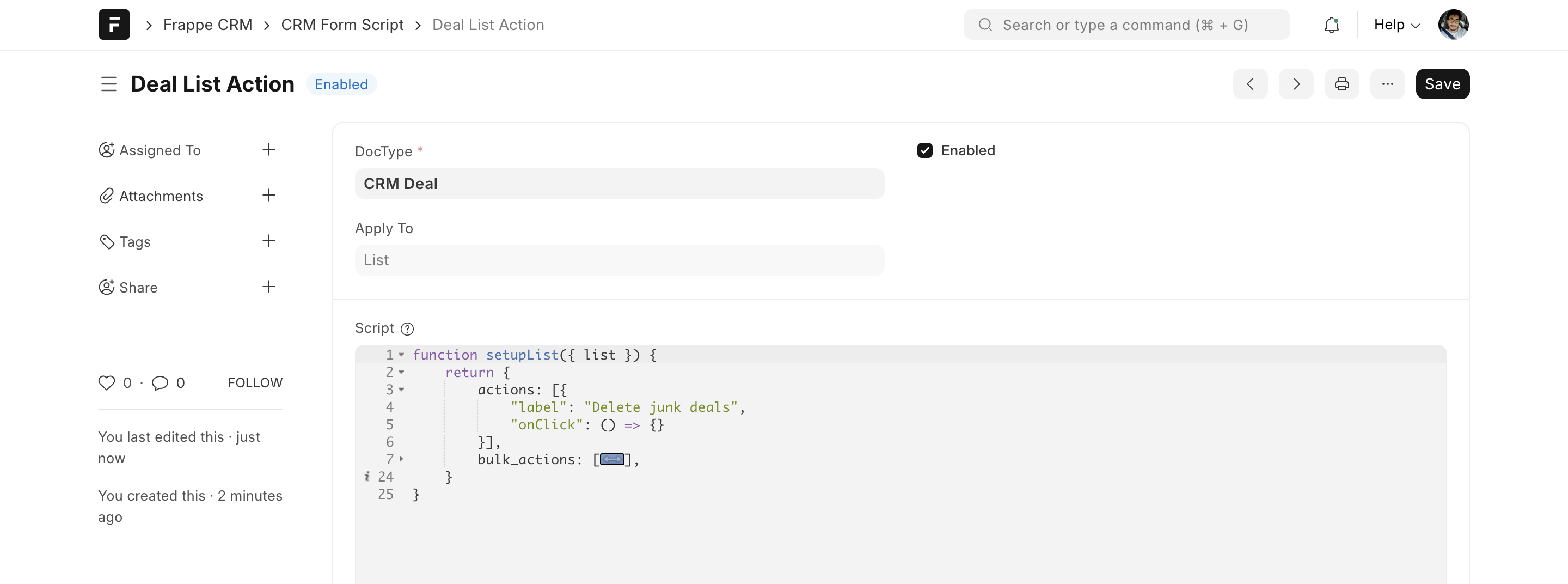
{
    "label": "Delete junk deals",
    "onClick": () => {}
}
In this example, the "Delete junk deals" button was added on listview which will automatically delete all the junk deals.
You can create all types of actions (Normal Button, Grouped Actions, Grouped Actions with label and combination of all). -
Bulk Actions: These are designed for performing specific tasks on multiple selected rows in the list view. This caters to situations where you need to apply the same action to a group of records simultaneously.
Example:
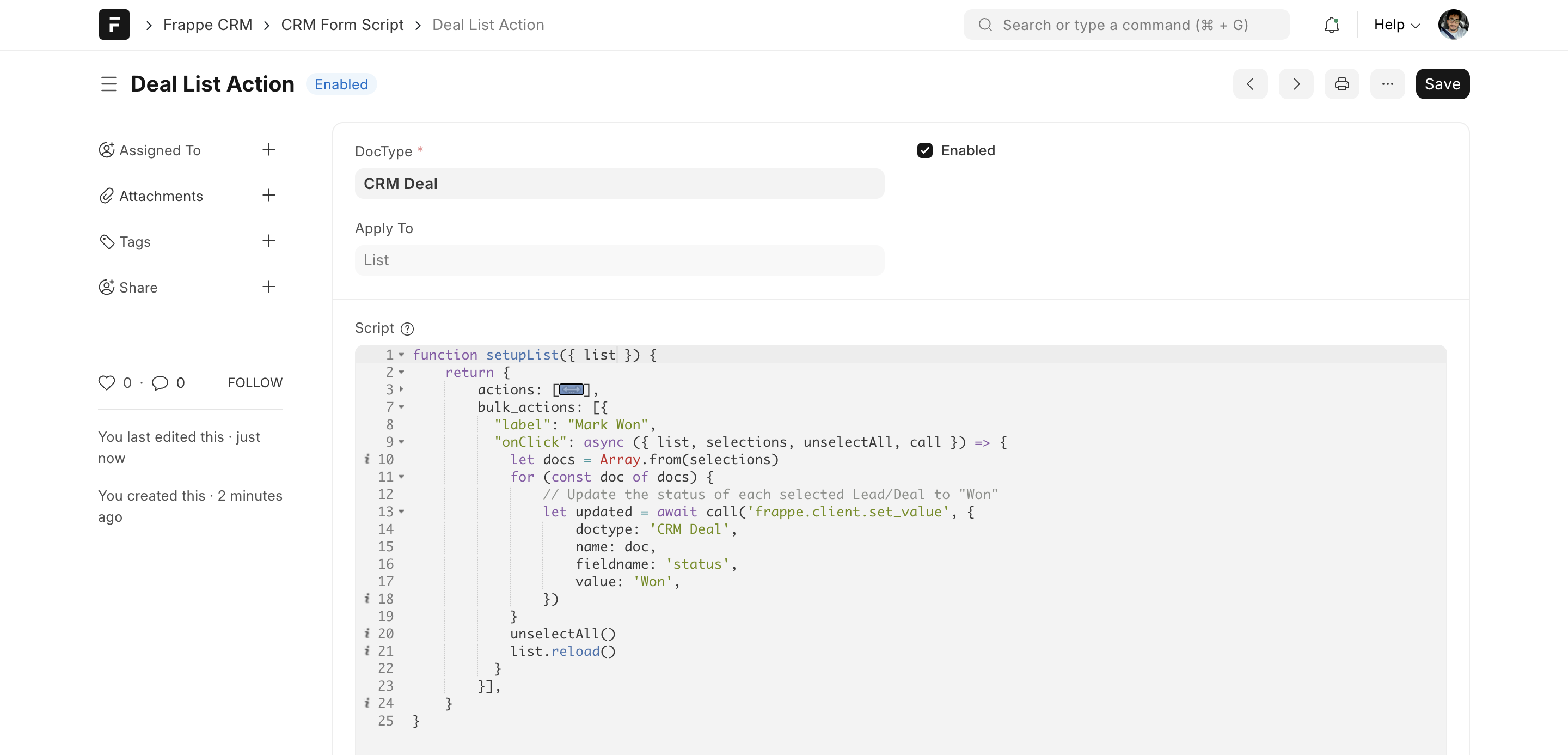
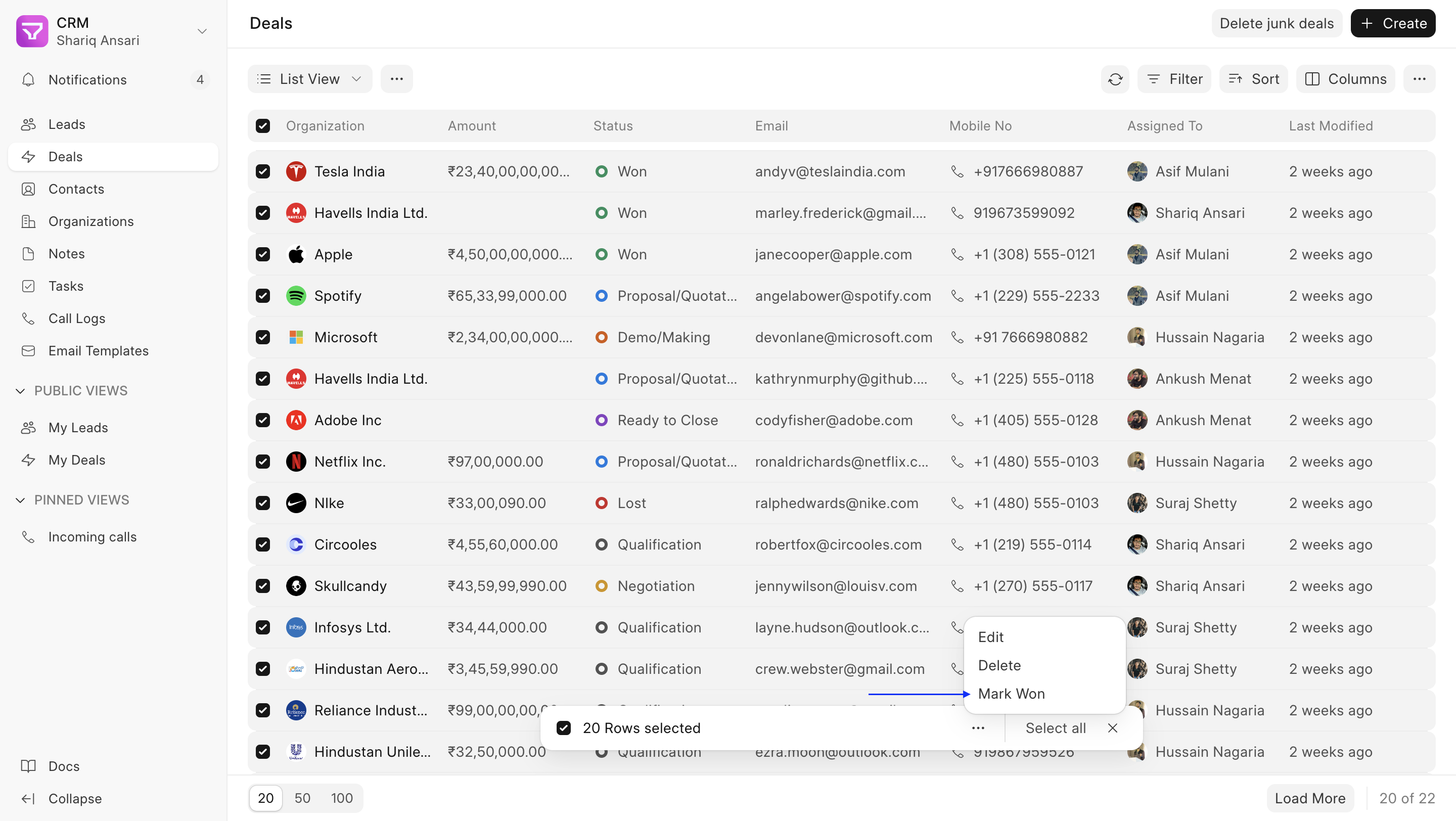
A bulk action such as "Mark Won" iterates through each selected Lead/Deal (
selections) and updates its status to "Won". Once done, it clears the selection withunselectAll()and refreshes the list withlist.reload().
Adding Custom List Actions
You can define custom list actions using Pixelwand CRM's Form Script functionality. Here's a step-by-step guide:
-
Navigate to Desk: Switch to Desk and navigate to CRM Form Script.
-
Select Doctype and Apply To: Choose the Doctype (e.g., Customer) for which you want to create the list actions. In the "Apply To" field, select "List" and save the configuration. This will generate a boilerplate code snippet.
-
Define Actions: The boilerplate code provides two options:
- actions: Here, you can specify a list of action buttons similar to custom actions on individual record pages (refer to the Custom Actions documentation for detailed guidance on defining button functionality). These buttons will be visible in the list view header.
- bulk_actions: This section allows you to define action buttons specifically designed for bulk operations on selected rows.
-
List Context: Both action types utilize JavaScript code to perform the desired functionalities. You'll have access to a
listobject as a parameter onsetupListand also ononClickevent, which provides valuable context about the list view. This object offers functionalities like reloading the list (list.reload()) and accessing additional information.Other than
listother contexts are also passed like$dialog,router,createToast, andcall. (for more details check the Custom Actions documentation) -
Bulk Action Context: When defining bulk actions, the
onClickevent receives additional context besides the standard parameters. This context includes:- selections: This is a Set object containing the names of all currently selected rows in the list view.
- unselectAll: This is a function that allows you to deselect all currently chosen rows.
By effectively utilizing these custom list actions, you can streamline your workflow and enhance your data management experience within Pixelwand CRM.
Leveraging Custom List Actions
Custom List Actions offer a powerful way to automate repetitive tasks on multiple Leads or Deals. You can leverage them for various purposes, such as:
- Updating statuses for a group of Leads/Deals
- Sending mass emails or notifications
- Exporting selected data for further analysis
- Triggering custom workflows based on bulk actions
Custom Statuses
Custom Statuses allow you to tailor the status options available for Leads and Deals to your specific business requirements. By defining custom status.
Quick Entry Layout
The Quick Entry Layout Builder lets you customize quick entry forms, adding custom sections and fields to Lead and Deal pages.